
Binance’s preliminary investigation into its estimated $6.3 billion security incident identified a possible compromised DevOps laptop. Later updates reported additional breach points, while researchers described on-chain mechanisms used to move funds. The full attack path remains under investigation.
Separately, a tampered Claude Code extension reached Cursor’s marketplace. There is no established connection between the incidents. This post focuses on one part of the broader security problem: controlling what runs on developer workstations and limiting what those workstations can reach.
Earlier posts on the npm worm problem and the LiteLLM compromise covered pinning, cooldowns, and allowlists for CI/CD. This post applies the same thinking one step earlier, to the developer workstation.
What happened at Binance
Binance’s October 30 security update gives an estimated total impact of about $6.3 billion, with around $3 billion frozen on-chain at that point. It commits to covering losses using SAFU and company funds.
Its preliminary investigation suggested a compromised DevOps laptop may have enabled access to a service container and unauthorized withdrawal transactions. Binance reported no evidence of a wallet private-key leak. A subsequent official investigation update reported additional breach points. The laptop is a possible entry point, not a confirmed complete explanation. The cited updates do not establish how it was compromised.
TRM Labs’ on-chain analysis describes an EIP-7702 delegation that made an Ethereum hot wallet run attacker-controlled code, with 50 pre-signed authorizations prepared in advance. TRM also observed ordinary signed transfers on other chains and assesses that the evidence points to compromised hot wallet signing infrastructure. These findings describe how funds were moved; they do not establish how the attacker initially gained access. The available findings do not establish that one laptop, or one engineer’s permissions, was sufficient to execute the theft.
The business risk extends beyond losing source code. A developer workstation can hold sessions and credentials for systems that deploy code, change infrastructure, or move money. Review that access before assuming a hardened production environment is out of reach from a laptop.
What happened with the Claude Code extension
According to Cursor’s security notice, a maliciously modified version of the anthropic.claude-code extension, version 2.1.313, was available in the Cursor extension marketplace between about 2:27am and 1:35pm Pacific on October 29. Cursor says the malicious version was not developed by Anthropic and affected at most 5,000 users. Its notice reports no evidence that other versions or the official distribution were affected; it does not establish the full distribution path. StepSecurity separately reports that evidence indicates Microsoft’s Marketplace copy was not affected.
An automatic update could install it without a manual install. That does not mean every user with auto-update received it. Cursor says the payload added an SSH key, installed persistence, and sent host details, but the SSH access step would generally fail without administrator privileges. The collected environment data included variable names, not evidence that their values were sent in the initial beacon.
StepSecurity’s analysis identifies 2.1.314 as clean. Updating or uninstalling alone does not remove the dropped persistence. If you installed 2.1.313:
- Follow Cursor’s checks for the
svc-telemetrySSH key and other indicators, including the Windows authorized-key locations. - Isolate hosts showing payload execution, preserve evidence, and use Cursor’s remediation guidance. Assess whether to rebuild.
- Rotate reachable credentials and sessions from a trusted machine.
- Treat this as an incident response task, not just an extension update.
Developer laptops connect tool risk to production access
A compromised workstation can expose developer credentials and sessions. The Cursor incident illustrates one way malicious code can reach that workstation. Extension controls address one possible entry route; access controls limit the consequences if any route succeeds.
In CI/CD, most teams now understand that pulling latest on every build means anyone who compromises a publisher ships code into your pipeline. Developer tools work the same way, except the “pipeline” is every laptop, and the defaults are wide open:
- Extensions auto-update by default. A new version can install without a separate review, with the same access to files, terminals, and credentials as the developer.
- Anyone can install anything. There is usually no list of approved extensions, so nobody knows what is running in the editor until something goes wrong.
- The editor runs with the developer’s access. If that developer can reach production, so can every extension they’ve installed.
Cursor reports an availability window of about eleven hours. A release-age cooldown can reduce exposure to short-lived malicious versions, but its protection depends on the publication timestamp used by the marketplace and client. The notice does not establish that a 24-hour cooldown would have blocked this build.
Control 1: Delay or stop extension auto-updates
Recent versions of VS Code give you two ways to stop a new extension version from landing on every machine the moment it’s published. The first turns automatic installs off entirely while still showing developers that updates are available:
{
  "extensions.autoUpdate": "off",
  "extensions.autoCheckUpdates": true
}
The second keeps automatic updates on but waits a set number of hours after a version is published before installing it:
{
  "extensions.autoUpdate": "on",
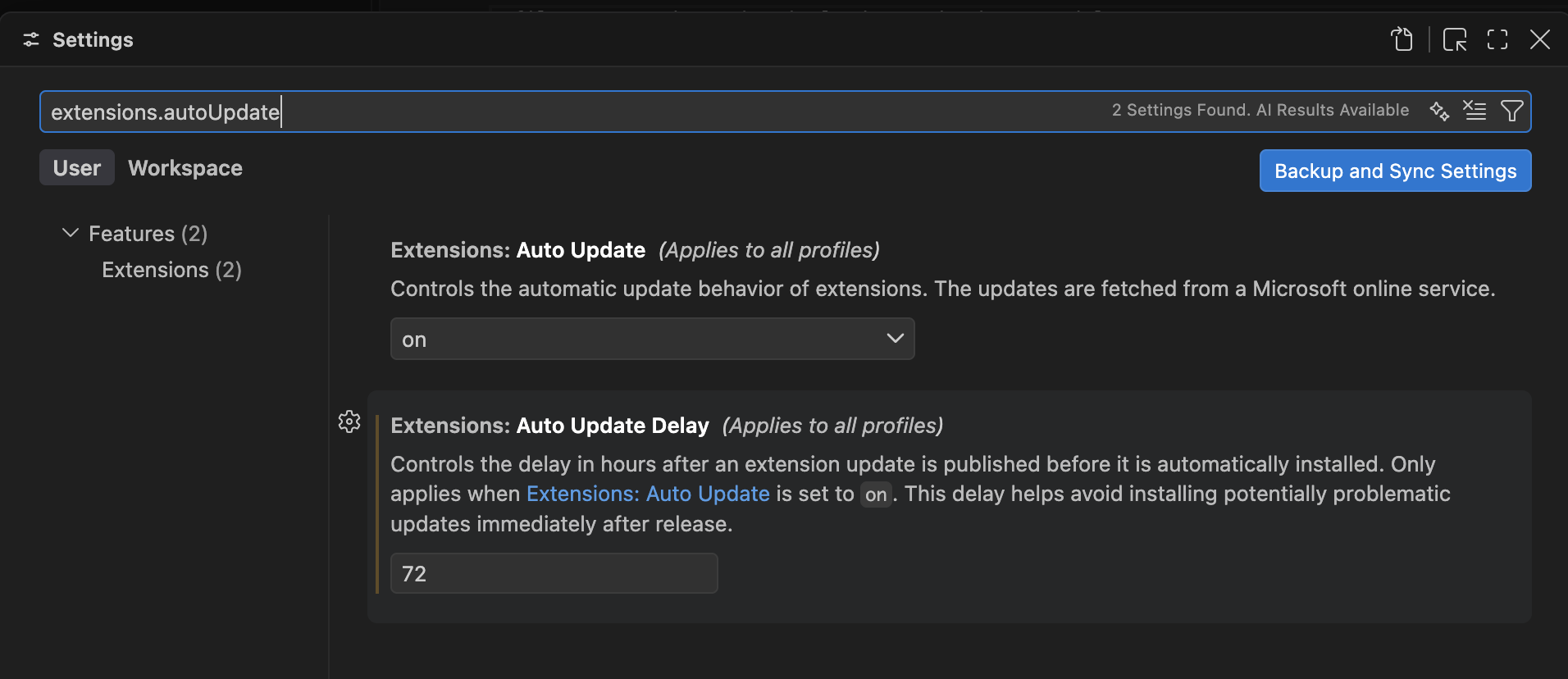
  "extensions.autoUpdateDelay": 72
}
That delay is a cooldown, the same idea as waiting before pulling a new package version into a build. It gives the community, the marketplace, and security vendors time to catch a bad release before it reaches you. Current VS Code defaults to a 12-hour delay, which gives new releases time to be reviewed. A few days provides a larger buffer, subject to how the client and marketplace determine release age. Cursor doesn’t use this setting; it has its own cooldown, covered below.
Managing VS Code yourself? Open Settings, select the User tab, and search for extensions.autoUpdate. Keep Auto Update set to on and set Auto Update Delay to 72 for a three-day cooldown, as shown below. Alternatively, set Auto Update to off and review updates manually.
Keep checking for security advisories so you can install urgent fixes sooner.
The tradeoff is real. Delaying updates means security fixes also wait. The answer isn’t “never update.” It’s to update on purpose: a cooldown for routine updates, a named person who watches for advisories, and a fast path for pushing an urgent fix early.
The editor itself is a separate setting (update.mode). Editor updates come from the vendor directly rather than a third-party marketplace, so most organizations should keep those on and focus on extensions.
Control 2: Allowlist the extensions you actually use
Starting with version 1.96, VS Code supports an allowlist. When extensions.allowed is configured, anything not on the list is blocked from installing:
{
  "extensions.allowed": {
    "microsoft": true,
    "github": true,
    "anthropic.claude-code": true,
    "esbenp.prettier-vscode": ["11.0.0"]
  }
}
You can allow a whole publisher, a single extension, or pin an extension to specific approved versions (ranges aren’t supported, so each version is listed individually). The full syntax is in Microsoft’s extension management docs.
One caution: an allowlist alone would not have stopped this week’s incident, because the malicious build used the real, approved extension ID. Allowlisting reduces how many publishers can reach your machines. Update delays and version pinning are what protect you when an approved publisher’s channel is compromised. You want both.
Control 3: Enforce it with Group Policy, Intune, or MDM
Everything above lives in a settings file the developer can edit, and so can any malware running as the developer. A setting someone can turn off is a suggestion. On company-managed machines, push these as policies instead. VS Code reads policies from the operating system, they override the user’s settings, and they show up locked in the settings screen so they can’t be changed.
The policy names map directly to the settings:
| Policy | Setting it locks | What to set |
|---|---|---|
ExtensionsAutoUpdate |
extensions.autoUpdate |
on with a delay, or off |
ExtensionsAutoUpdateDelay |
extensions.autoUpdateDelay |
Hours to wait, such as 72 |
AllowedExtensions |
extensions.allowed |
Your approved publishers and extensions |
How you deliver them depends on the platform:
- Windows (Group Policy or Intune): Every VS Code release ships a
policiesfolder with ADMX and ADML templates. For Active Directory, copy them to the Group Policy Central Store and configure them like any other administrative template. For Intune, import the ADMX as a custom administrative template and assign it to your developer device group. The values land in the registry underSoftware\Policies\Microsoft\VSCode. - macOS (MDM): VS Code ships a sample
.mobileconfigconfiguration profile inside the app bundle underContents/Resources/app/policies. Edit it and deploy it through Jamf, Iru (formerly known as Kandji), Intune, or whatever MDM you use. Profiles installed by MDM can’t be removed or overridden by the user. - Linux: Since version 1.106, VS Code reads
/etc/vscode/policy.json. Deploy it with Ansible, Puppet, or your usual configuration tool, owned by root and not writable by users.
On Linux, for example, the policy file looks like this:
{
  "ExtensionsAutoUpdate": "on",
  "ExtensionsAutoUpdateDelay": 72,
  "AllowedExtensions": {
    "microsoft": true,
    "github": true,
    "anthropic.claude-code": true
  }
}
Two things to check after rollout. First, confirm the policy actually took effect: the Developer: Policy Diagnostics command in VS Code shows which policies are applied and which were not, and a single syntax error means the policy is silently ignored. Second, check every editor your developers actually use. These policies are read by VS Code. Forks like Cursor have their own enterprise controls and don’t use VS Code’s policies. A policy that only covers one of the three editors on your fleet isn’t covering the fleet.
The same policy channel controls VS Code’s AI agent features too, including whether agents can run tools without approval (ChatToolsAutoApprove) and which MCP servers are allowed (ChatAllowedMcpServers). Microsoft’s enterprise policies reference lists all of them. If you’re building the profile anyway, it’s worth a look.
Control 4: Cursor has its own controls
Cursor is built on VS Code, but it runs its own extension marketplace, and that marketplace is where this week’s malicious build was published. It also has its own admin controls, split between the team dashboard and device management. Cursor’s deployment patterns and security hardening guides cover the details. These are the settings that matter most here.
In the team dashboard:
- Marketplace install cooldown. In Team settings → Security & automation → Marketplace Install Cooldown (hours), admins can hold back extension installs and updates until a marketplace version has been public for a set number of hours. A 72-hour cooldown can block a short-lived malicious release if its marketplace publication timestamp starts the cooldown within that window. The documented default is
0hours (disabled). A positive team value applies fleet-wide and overrides the user’sextensions.installCooldownHourssetting. - Extension allowlist. The dashboard can push an
extensions.allowedlist to every member’s client (Cursor 2.1 and later). It accepts publishers, full extension IDs, and pinned versions. Note that in Cursor, any entry turns the list into an allowlist and blocks everything not named, unless you add"*": true. - Signature verification. Cursor can optionally require valid signatures on Open VSX extensions. Turn it on and test it with the extensions your team uses.
Through MDM or Group Policy:
Cursor ships its own policy templates: sample configuration profiles inside the macOS app bundle, and ADMX/ADML Group Policy templates for Windows under AppData\Local\Programs\cursor\policies. They are separate from VS Code’s templates, so a VS Code profile doesn’t cover Cursor. The keys that matter here:
| Policy | What it does |
|---|---|
AllowedExtensions |
Extension allowlist; overrides both the dashboard and the user’s own settings |
AllowedTeamId |
Only allows sign-in to your company’s Cursor team, so a personal account can’t sidestep your dashboard controls |
UpdateMode |
Controls how the Cursor app itself updates |
ExtensionGalleryServiceUrl |
Points Cursor at a different extension marketplace, such as an internal mirror |
AllowedTeamId is easy to overlook and matters more than it looks. Every dashboard control above, including the cooldown, applies only when the developer is signed in to your team. If someone signs in with a personal account on a company laptop, none of it applies.
Two gaps worth knowing about. As of October 30, 2026, Cursor’s documented MDM policy list still has no key for extension auto-update or install cooldown. UpdateMode controls the app updater, not extensions. Enforce the cooldown through the team dashboard; a user-editable settings.json is not a locked MDM policy. Also, clearing a dashboard allowlist leaves clients enforcing the last value they received. To reset them to allow all, first deploy {"*": true}, wait for clients to receive it, then clear the field.
Control 5: Don’t forget the CLI tools
AI coding assistants, language servers, and other developer tools often update themselves outside the editor. Claude Code’s CLI, for example, auto-updates by default; it can be held back with the DISABLE_AUTOUPDATER environment variable or controlled centrally through its managed settings file, which you can deploy with the same MDM tooling. The CLI wasn’t part of this incident, but the same question applies to every tool on the machine: who decides when a new version runs?
Inventory the tools that update themselves, and for each one decide on purpose whether it auto-updates, waits, or is pinned.
Control 6: Shrink what a compromised laptop can reach
Update controls reduce one route to compromise. Limit what an attacker can reach if a workstation is compromised through any route.
- No standing production access from daily-use laptops. Use just-in-time access that has to be requested, approved, and expires, so a stolen session isn’t a permanent key.
- Keep long-lived secrets off the machine. Cloud keys and tokens in environment variables,
.envfiles, and shell history are reachable by code running as the developer. Use short-lived credentials and a secrets manager instead. - Separate high-risk actions. Moving money, changing production infrastructure, or approving and publishing software releases should require a separate device, a second person, or both. One laptop should never be enough.
- Run EDR on developer machines too. Developers sometimes get carved out of endpoint monitoring because it slows builds. Those are the machines that most need it. An unexpected change to
authorized_keysis exactly the kind of thing it should alert on. - Watch the outbound side. Extensions calling home to unfamiliar domains are worth knowing about, even if you only log it at first.
Where to start this week
- Map what each developer laptop can reach in production. Remove unnecessary standing access, replace long-lived credentials, and require separate approval for high-risk actions.
- Find out who used Cursor with Claude Code on October 29. Check those machines for the indicators above and rotate their credentials.
- Set an extension update delay of a few days, or turn auto-update off, and push it as a policy through Group Policy, Intune, or your MDM so it can’t be undone locally. For Cursor, set the marketplace install cooldown in the team dashboard and lock sign-in to your team with
AllowedTeamId. - Pull a list of installed extensions across your developer fleet. That list is your first draft of an allowlist, which goes out through the same policy.
Beyond the device management you likely already have, none of this requires new tools. It’s the same discipline already applied to CI/CD, extended to the machines that write the code. If you want help building that out, our DevSecOps and AI tool review services cover developer workstation hardening, extension policy, and access design. Contact us or call (608) 448-6075.